


Photoshop Express Photo Editor
4.658.71K Reviews
App Specs
- Version
- 18.0.25
- Updated On
- License
- Free
- Downloads
- 100,000,000+
- Developer
- Adobe
- Categories
- Photography
- Platform
- Android, iOS
Screenshots
 Analysis by AppCompare
I use Photoshop Express Photo Editor most when a photo needs a quick, practical fix rather than a long editing session. It suits the familiar phone-gallery problem: a nice moment, but the image is a little crooked, too dark, or needs a crop before I share it. Adobe’s photography app brings those everyday adjustments together with more playful options, so I can tidy a picture or make a collage without moving straight to a more demanding editor.
That convenience matters in a household where people may pass around one device or take turns editing pictures. I would treat the app as an editing tool, not as a shared family album: each person should know which images they are changing and where the finished versions are being saved or shared. A few simple ground rules—such as asking before editing someone else’s portrait and checking the destination before posting—can prevent the awkward surprises that have more to do with coordination than with filters.
One phone, several people, different editing habits
For a shared-device scenario, the approachable layout is a real advantage. A less experienced relative can crop a snapshot or try a filter while someone more confident handles a blemish correction or a collage. The same picture can serve different purposes, too: one person might want a natural-looking family photo, while another prefers text and stickers for a playful message. I would agree on the intended result before handing over the phone, especially if the original image matters to more than one person.
It is also worth separating editing from permission to share. Making a collage for a private conversation is not the same as posting a picture publicly, and a tool that makes sharing convenient does not decide who is comfortable appearing in the image. I would preview the finished result and check its audience before sending it anywhere. That small pause is useful with any photo editor, but especially when several people contribute to the same set of pictures.
Set expectations before the first edit
Photoshop Express is free to start, but it also offers in-app purchases ranging from $2.99 to $99.99 per item. In a household, I would make that clear before a child or another family member explores the app. The free starting point does not mean every option is necessarily included, so it is sensible to pause at any purchase prompt and let the person responsible for the device decide. I would not treat a tempting effect or feature as something the whole household has agreed to buy.
My practical setup is simple: decide who is allowed to approve purchases, whether people should ask before changing a shared photo, and whether finished edits are meant for saving or immediate sharing. Those are household agreements rather than controls I assume the app provides. They also answer a common question before it becomes a problem: can several people use it together? They can take turns on a device, but I would coordinate manually instead of expecting the editor to manage everyone’s boundaries for us.
Who will enjoy it, and who may want another tool?
The app is a good fit for someone who wants familiar corrections, a choice of looks, and occasional creative extras in one place. It is particularly handy for turning a batch of casual phone pictures into a few presentable images without learning a complicated desktop workflow. Adobe is the developer, and the app’s broad reach—over 100 million installs and an average rating of 4.6 from around 2.6 million ratings—suggests that many people find this kind of accessible editing useful.
Worth Reading Before You Choose

Switching to Android Auto Means Rethinking Your Driving Routine

Google Calendar Makes a Crowded Week Easier to Manage

Baby Panda World Brings Quick Play to Modern Phones, but Its Game Library Feels Busy

ESPN’s Live Game View Makes Following Close Games Easier

QuizzLand Review: A Good Fit for Short Trivia Breaks, Not Every Player

Basketball Stars: Multiplayer Is Fast, but Can It Recover When Matches Go Wrong?
I would look elsewhere if my main goal were detailed, layered retouching or a carefully controlled professional workflow. A more advanced editor is a better match when I need precise selections, extensive layer work, or repeatable color decisions across a large project. At the other end, the built-in editor on a phone is often enough for a single crop or brightness adjustment. Photoshop Express makes the most sense between those extremes: more options than a basic gallery tool, without asking every casual user to become an editing expert.
Age is another part of the decision. The app is rated Everyone, which is useful context for households, but it does not replace an adult’s judgment about purchases, sharing, or which images a younger user should edit. I would show a child how to undo an unwanted change, avoid buying anything without permission, and check with the people in a photo before sharing it. The goal is not to make editing feel risky; it is to keep the creative part fun while making the boundaries clear.
First Impressions: Sleek and User-Friendly
Right off the bat, the app’s interface is super sleek. Adobe has done a fab job of keeping things intuitive, so you won’t feel lost in a sea of tools. Upon opening the app, you’re greeted with a clean layout, which makes navigating through its features a breeze. No need to be a tech wizard here—everything is pretty straightforward.
The main menu offers options like editing, collage creation, and even a quick look at your recent projects. It’s all very organized, which is perfect for someone like me who can get easily overwhelmed by clutter.
Diving Into the Features
Now, let’s talk features. The Photoshop Express Photo Editor packs quite a punch with its array of editing tools. Whether you’re looking to do some basic edits or get a bit more creative, there’s something for everyone.
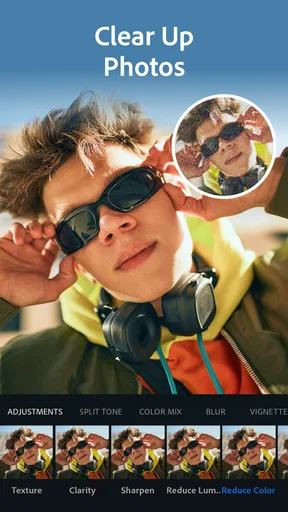
Basic Edits: You’ve got your standard crop, rotate, and straighten options, which are essential for any photo app. The adjustments for brightness, contrast, and exposure are easy to use and can seriously transform your images with just a few tweaks.
For a practical workflow, I start by straightening the image and cropping away distractions, then adjust brightness or exposure. Doing the framing first helps me judge the tonal changes against the composition I will actually keep. I also make modest adjustments and check the photo at its normal viewing size; a dramatic edit can look appealing on a bright phone screen but less convincing when shared or viewed later.
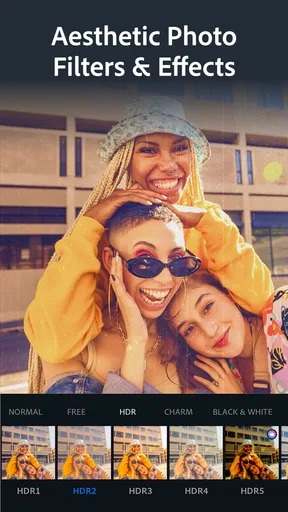
Filters Galore: If you’re anything like me and enjoy adding a bit of flair to your photos, you’ll love the filters. There are loads to choose from, and they’re all customizable. You can adjust the intensity to get just the right look, which is a big plus.
That intensity control is more useful than simply choosing a preset. I often lower a filter until it adds a little warmth or mood without making skin tones, food, or familiar surroundings look strangely artificial. For a set of pictures from the same outing, I try to keep the strength similar rather than applying a different strong look to every image. It gives the group a more consistent feel without turning a quick edit into a major project.
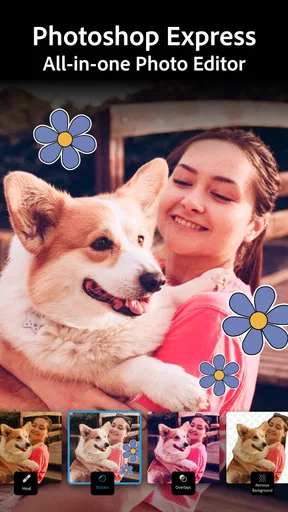
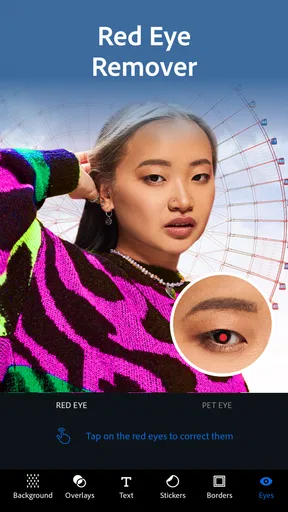
Advanced Tools: For those who want to take their editing skills up a notch, the app offers features like spot healing and red-eye removal. These tools are incredibly handy for quick fixes and make your photos look polished.
I see spot healing as a small cleanup tool, not a substitute for detailed retouching. It is best for an isolated distraction that does not define the whole image; if an area has complicated edges or important texture, a quick correction may look less natural than leaving it alone. Red-eye removal has the same practical role: it can help with a common snapshot flaw, but it is not the reason I would choose this app for a demanding portrait project.
Special Features: Collage Maker and More
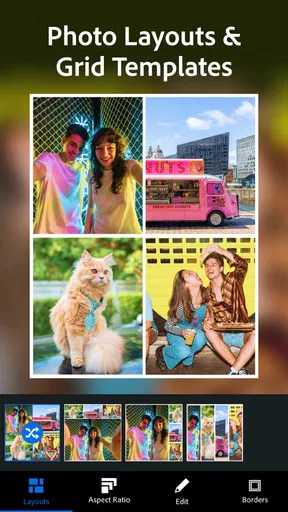
The app also includes a collage maker, which I found really fun to play around with. It’s a great way to combine multiple photos into one frame, and the templates provided are quite stylish. You can easily adjust the borders and add text to personalize your creations.
A collage works especially well when the pictures tell one small story: a few stages of a recipe, different angles of a craft, or snapshots from a short outing. I choose images with a shared subject before picking a layout, since a template cannot make unrelated pictures feel connected. If the result is meant to be read on a phone, I keep the number of images and the text modest so each picture remains easy to see.
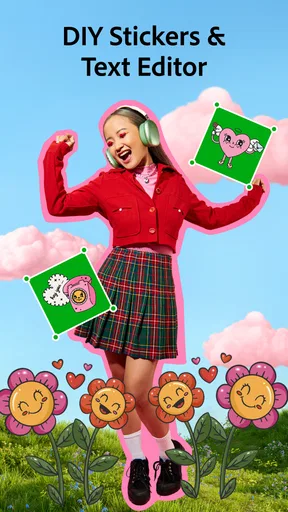
Another cool feature is the ability to add text and stickers to your images. The fonts are varied, and the stickers are fun, making it easy to add a bit of personality to your photos. This is perfect for creating memes or adding a quirky touch to your snapshots.
Text and stickers are most effective when they have a clear job—labeling a memory, adding a brief joke, or making a simple announcement. I try not to cover faces or the detail that makes the photo worth keeping. For a family message, I would also check spelling and names before sharing; once an image is decorated, it can be less convenient to correct than a plain photo.
Performance and Ease of Use
One thing I noticed is how smoothly the app runs. It didn’t lag or crash during my use, which is always a relief. The app’s performance is solid, even when working with higher resolution images. This is definitely a big win in my book.
The ease of use is another highlight. Even if you’re not super tech-savvy, the app guides you through each step with helpful tips and a user-friendly design. It feels like the app is holding your hand, which is comforting for those new to photo editing.
For a realistic everyday example, imagine taking a quick picture of a school project on the kitchen table. I would crop out clutter, straighten the edges, lift the exposure if the room made the image dim, and perhaps add a short label if I were sending it to relatives. That sequence uses the editor for a specific purpose rather than adding effects for their own sake. If the picture is a record that needs exact detail, I would keep the edits restrained and retain the original separately when possible.
One question people often have is whether this is suitable for a complete beginner. I think so for routine fixes, because the familiar tools are easy to understand and the layout does not demand a technical vocabulary. The learning curve rises only when someone starts chasing a very particular look or expects small automatic corrections to solve a difficult image. Beginners can get useful results by changing one thing at a time and comparing the result with the untouched photo.
Sharing and Saving: Seamless Integration
Once you’ve crafted your masterpiece, sharing it is a cinch. The app integrates smoothly with social media platforms, allowing you to post your photos directly to Instagram, Facebook, or wherever your heart desires. You can also save your edited photos to your device in high quality.
Before sharing, I recommend checking the crop and the text at the size people are likely to see it. A design that looks balanced while editing can feel crowded in a small preview. For household pictures, I also make sure the people involved are comfortable with the finished version and its intended audience. That last check is a people decision, not an editing feature, but it matters just as much as the final touch.
The ability to export in different formats is a nice touch, making it easy to ensure your images look their best no matter where they’re displayed.
The app is free, carries an Everyone age rating, and is currently version 17.9.22. Those details make it straightforward to consider for a mixed-age household, but the purchase range and the possibility of sharing still call for common-sense supervision. I would also avoid treating a shared phone as a permanent handoff: one person can finish an edit, save or share it deliberately, and then let the next person start with a clear understanding of whose photo is on screen.
Final Thoughts on Photoshop Express Photo Editor: I’m genuinely impressed with how comprehensive yet user-friendly this app is. It has a little something for everyone, from the casual user to the more seasoned photo editor. The ease of use combined with powerful features makes it a must-have on your smartphone.
If you’re looking for a photo editing app that’s both fun and functional, give Photoshop Express Photo Editor a try. It’s a pocket-sized powerhouse that’s sure to elevate your photo game. Happy editing!
A sensible choice for a household editor
My household verdict is that this works best as a shared, occasional editing option when everyone understands the basics: edits can change the look of a picture, purchases need an adult’s approval, and sharing deserves a quick check. Its combination of straightforward corrections, filters, collage-making, and playful additions covers a lot of everyday needs without requiring separate tools for each small task.
I would skip it if the household needs a dedicated system for managing multiple people’s accounts or permissions, or if one person expects a full professional editing suite. For quick family snapshots, school-project images, and casual social posts, though, it strikes a useful balance. I would keep the workflow simple, agree on boundaries, and let the photo—not the urge to use every effect—guide the edit.
Pros
- User-friendly interface with quick access tools.
- Wide range of filters and effects for creativity.
- Supports high-resolution photo editing.
- Seamless integration with Adobe Creative Cloud.
- Frequent updates ensure new features and fixes.
Cons
- Limited advanced features in free version.
- Some tools require in-app purchases.
- Occasional performance lags on older devices.
- Requires Adobe account for full functionality.
- Large app size may affect storage space.
FAQs for Photoshop Express Photo Editor
What features does Photoshop Express offer for photo editing?
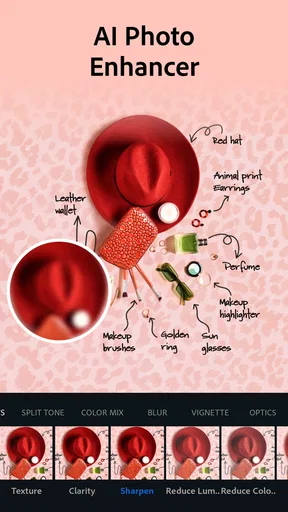
Photoshop Express provides a wide array of features including basic editing tools like crop, rotate, and straighten, as well as advanced options like blemish removal, noise reduction, and spot healing. Users can also apply filters, adjust colors, and add text overlays. The app supports blending and layering effects, making it a versatile tool for both beginners and seasoned editors.
Is Photoshop Express free to use, or are there in-app purchases?
Photoshop Express is free to download and offers a range of basic editing tools at no cost. However, it does include in-app purchases for premium features. These may include advanced filters, additional editing tools, and cloud storage options. Users have the flexibility to choose whether or not to invest in these extras based on their editing needs.
Can I use Photoshop Express offline, or does it require an internet connection?
Photoshop Express can be used offline for basic photo editing once the app and necessary resources are downloaded. However, an internet connection is required for certain features such as accessing cloud storage, downloading additional filters, and sharing edited photos directly to social media platforms. Keeping the app updated also requires an online connection.
How does Photoshop Express compare to the full Photoshop software?
Photoshop Express is a mobile-friendly version of Adobe's full Photoshop software, offering a more streamlined set of tools for quick and easy editing on the go. While it lacks some of the advanced features found in the desktop version, it provides sufficient capabilities for most casual editing tasks. It's ideal for users looking for a convenient solution without the complexity of the full software.
What file formats does Photoshop Express support for importing and exporting?
Photoshop Express supports a variety of file formats for importing, including JPEG, PNG, and TIFF. For exporting, users can save their edited images in JPEG or PNG formats, which are compatible with most devices and platforms. This flexibility ensures that users can work with and share their photos easily across different mediums.


